
Create
The primary generation interface for images, videos, music, and more.
Create is where the work starts. Pick a mode, describe what you want, and get a result back in the same window — it's the default generation home for most people, and the fastest path from an idea to an asset in your library.
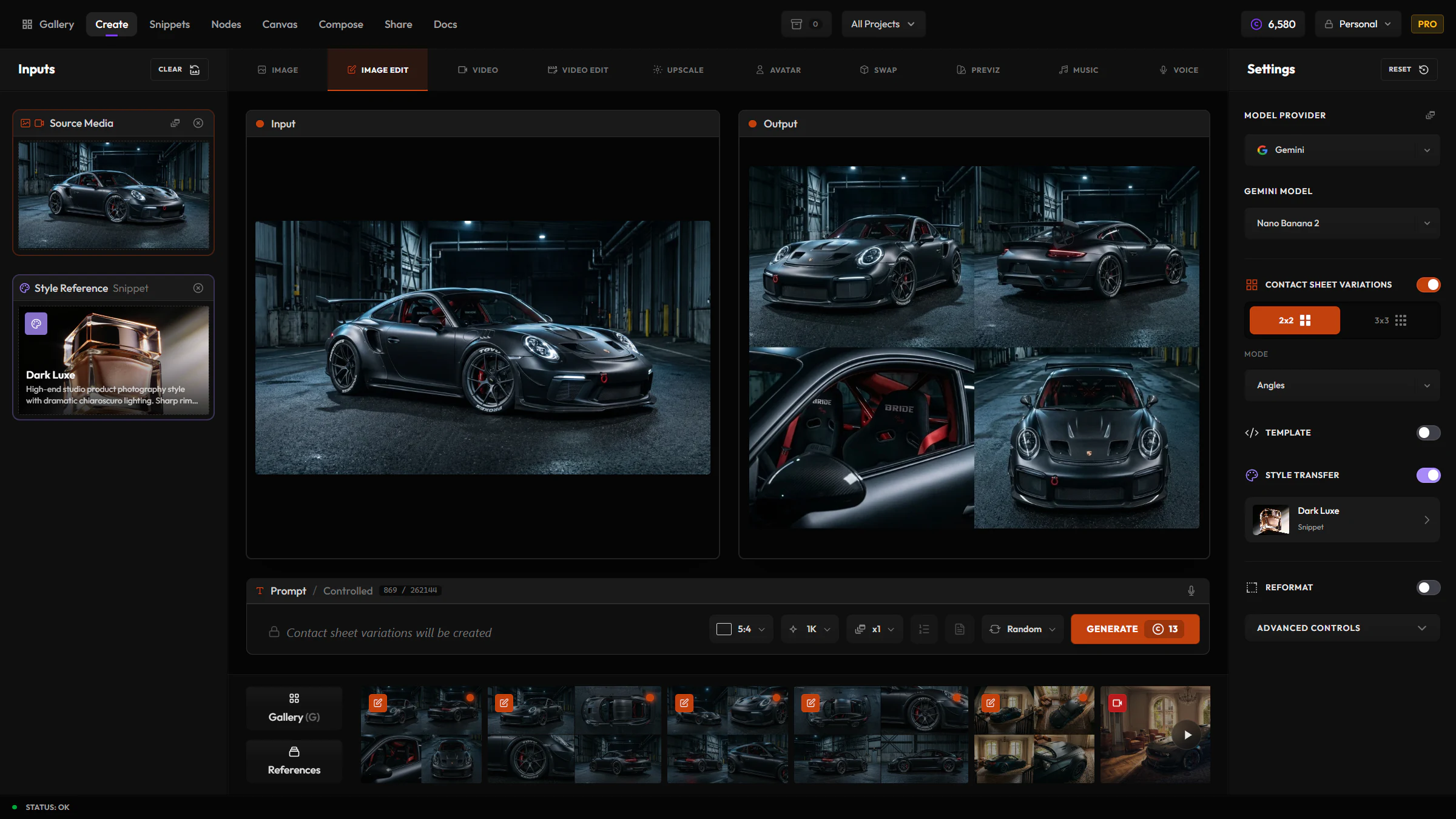
Layout
Create uses a three-panel layout:
- Left — Input sidebar (references and mode-specific slots)
- Center — Mode tabs, generation history gallery, prompt bar, and timeline strip
- Right — Provider/model picker and mode-specific settings
How it works
Select a mode
Image Gen, Video Gen, Video Edit, Image Edit, Upscale, Avatar, Music, Voice, Product Swap, Previz.
Choose a provider and model
Options are filtered to what the current mode supports.
Configure inputs
References, aspect ratio, quality, seed — whatever the mode calls for.
Write a prompt
Type it directly, or use a template or saved snippets.
Generate
Jobs queue and results land in the center gallery, and in the Gallery app.
Modes available in Create
Reusable prompt text, templates, and extract-from-media tools live in Snippets, not as a Create mode.
Prompt bar
- Text prompts
- Voice input
- Magic Prompt / multi-shot builders (where supported)
- Formula mode for batch variable fan-out
@snippets — insert saved Snippets tokens- Visual templates — fill fields instead of writing the full prompt by hand
Snippets & templates
Use Snippets for reusable language and templates.
Type @ in the prompt editor to insert snippet tokens. Hylope resolves them on generate and stores snippet references on the asset.
For Image Gen, turn on Template in the right panel, pick a saved template, fill fields in the template editor, apply, then generate. Aspect ratio stays in Image Gen settings, not inside the template.
Input sidebar
Slots adapt to the active mode (e.g. start frame for Video Gen, scene + product for Product Swap, source media for Upscale). Drag-and-drop or click to browse.
Gallery & timeline
- Justified center gallery of history
- Timeline strip for recent work
- Lightbox for full preview, metadata, lineage, and actions
Tips
Tip
Press Enter to generate — the prompt editor doesn't take line breaks, so Enter submits instead of adding a new line.
- Seeds make results reproducible when the model supports them
- Cost estimate appears on the Generate button
- Batch size up to 4 on paid plans (1 on Free)