
Snippets
Save reusable prompt text, variables, and visual templates for faster generation.
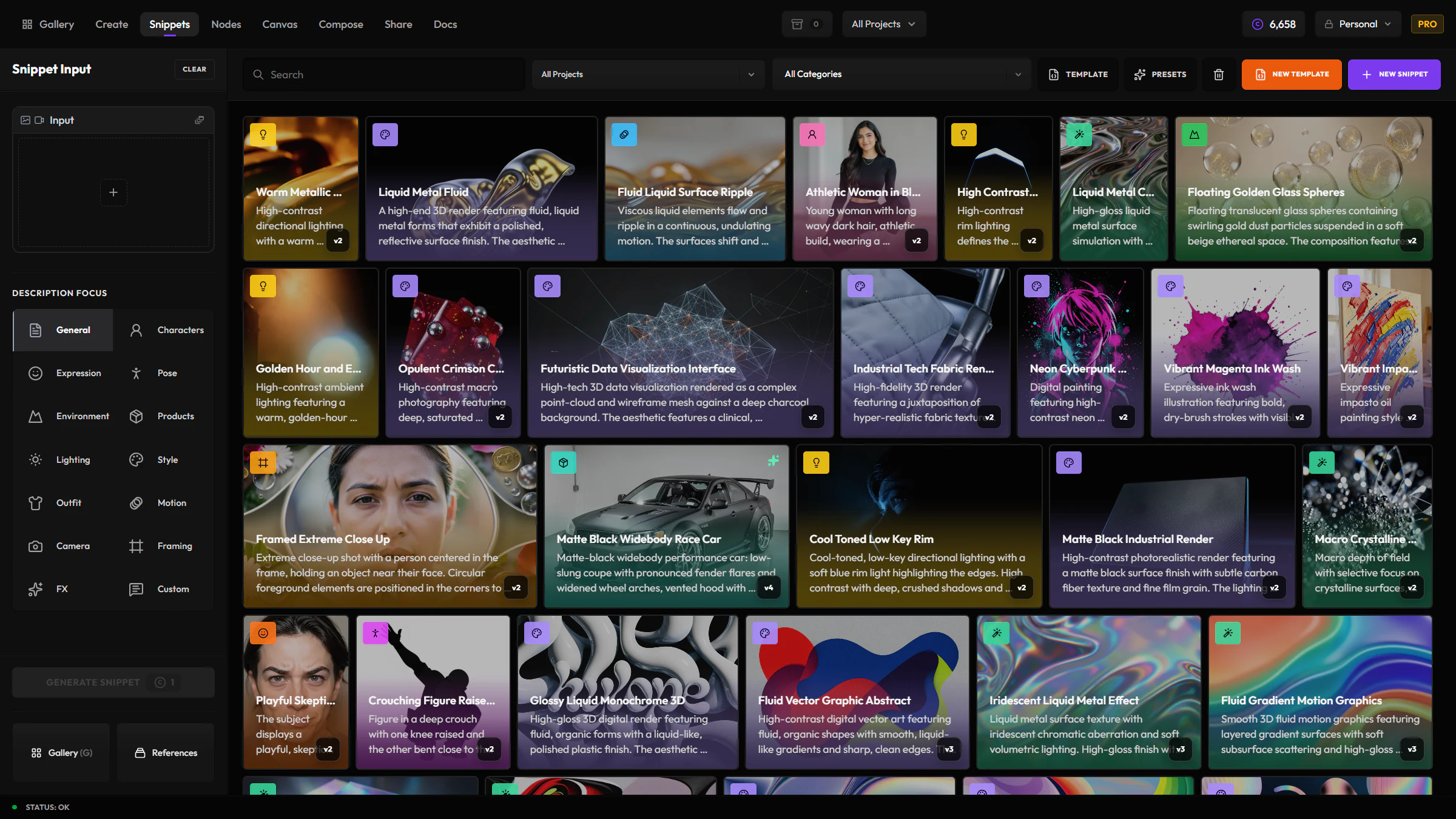
Snippets is where reusable prompt language and visual templates live. Write a piece of prompt text once — a lighting setup, a color palette, a camera look — and drop it into any generation with an @ token instead of retyping it. Snippets also covers extracting that kind of language directly from an existing image or video.
When to reach for Snippets
Reach for Snippets when you want to reuse the same language, palette, or structured template across many generations. Use Create for a one-off generation that doesn't need to be saved.
What you can save
Snippets are organized by category for @ search in Create and Gallery:
- General — reusable prompt text, notes, negative fragments
- Style — art direction, rendering, brand treatment
- Lighting — setups, mood, time of day
- Camera — lens, body, depth of field
- Framing — composition, crop, angle
- Colors — palettes and color language
- Template — structured visual prompt builders with fields
- Plus other categories the product exposes (characters, expression, pose, environment, products, outfit, motion, FX, …)
Snippets can include a title, body text, thumbnail / source media, project, author, and versions. Cards can show linked media, key-asset status, and video scrub previews.
Extract from media
From Snippets you can generate snippet content from an image or video (prompt-style text, style notes, color palettes, and related focuses). Extract, edit, categorize, version, and reuse everything via @ tokens in Create and Gallery search.
Using Snippets in Create
Anywhere the prompt editor supports tokens, type @ to search your snippets. Choose a snippet and Hylope inserts a friendly colored token instead of forcing you to paste the full text manually.
When you generate, Hylope resolves those tokens into the final prompt and keeps the snippet reference in the asset metadata. This makes prompts easier to scan while keeping the full source reusable.
Gallery search also supports snippet tokens. Type @ in Gallery search to filter for assets that used a saved snippet or visual template.
Snippet versions
When a snippet's text changes over time, Hylope keeps each version so older prompt systems remain understandable. You can review previous versions and make an older one active again.
Versioning is text-only
The poster or source media is shared across every version of a snippet and updates in place — it isn't tied to a specific text version. Switching to an older version changes the text, not the poster.
Visual templates
Template snippets are reusable JSON prompt builders. A template defines:
- Title and description — what the template is for
- Author/source — optional attribution fields
- Blocks — editable fields such as text, images, select menus, colors, palettes, toggles, and numbers
- Prompt template — the final prompt with
@field_idplaceholders - Poster image — an optional preview image for the template browser and lightbox
Templates are best for repeatable creative formats, such as poster systems, product shot formulas, editorial layouts, or campaign-specific image directions.
Create a template
Open Snippets and start a template
Click New snippet, then choose the Template category.
Add the basics
Add a title, description, author, and optional source link.
Add fields
Add fields in the builder, or switch to JSON and paste a Hylope template JSON file.
Write the prompt template
Use field tokens like @subject, @location, or @accent_color.
Save
Save the snippet.
Pasting an external template
If you paste external JSON, Hylope tries to validate and convert it into the Hylope visual template format. The converter removes aspect-ratio controls, since aspect ratio is handled by the Image Gen settings panel.
Field types
Use field types to make templates easier to fill:
| Type | Use For |
|---|---|
| Text | Editable values such as a subject, headline, or scene description |
| Image | A reference image bound to an asset category |
| Snippet | A category-scoped picker for saved snippets such as lighting, style, camera, framing, or motion |
| Options | A fixed list of choices |
| Color | One hex color with a visual picker |
| Palette | Multiple color swatches |
| Number | Numeric controls such as intensity or count |
| Toggle | On/off prompt clauses |
Tip: if a text field already contains comma-separated options, changing it to Options can turn those values into choices automatically.
Template posters
Template posters are previews, not free background generation jobs.
For a new template, use Generate image from the empty poster area to open Image Gen with the template pre-applied. After you create a good representative image, open it in the lightbox and use it as the template poster. You can also upload a custom poster from the template editor.
When you edit an existing template, save a new version if the prompt structure changes meaningfully. That keeps generated previews, poster choices, and older projects easier to trace.
Use a template in Image Gen
Open Create and select Image Gen
Open Create, then select Image Gen.
Turn on Template
Turn on Template in the right settings panel, then choose a saved template.
Fill the fields
Click the template-controlled prompt bar to open the template prompt editor, and fill the fields — use @snippet tokens where useful.
Apply and generate
Click Apply Prompt, then generate.
The prompt bar shows a shortened rendered prompt while the template is active. The original prompt text area is locked because the template fields are controlling the final prompt.
Good template practices
- Do not add aspect ratio as a template field. Use the Image Gen aspect-ratio setting instead.
- Keep field IDs short and readable, such as
subject,main_text, oraccent_palette. - Use select fields for repeatable choices and text fields for user-specific details.
- Use color and palette fields instead of asking people to type hex values manually.
- Keep attribution when adapting a public template, and check the original license before sharing it in a workspace.